 HISP Rwanda
Quality Score Entry
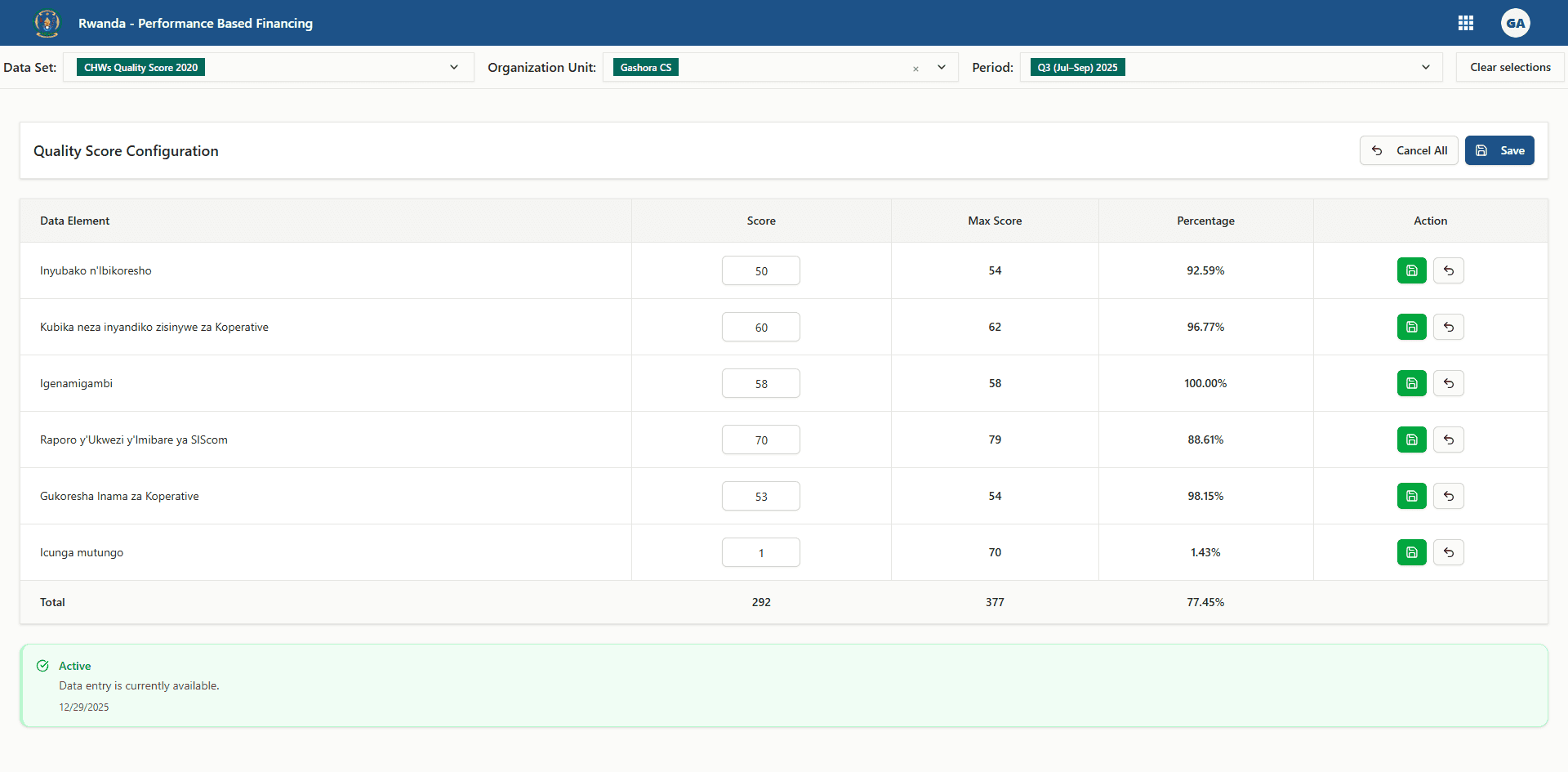
Use the Quality Score Entry workspace to capture how well a facility met each quality indicator after a supervision visit. You choose the dataset, facility (organisation unit), and reporting period to load the configured indicators together with their maximum scores, then record the validated score so payment calculations reflect the site’s performance.
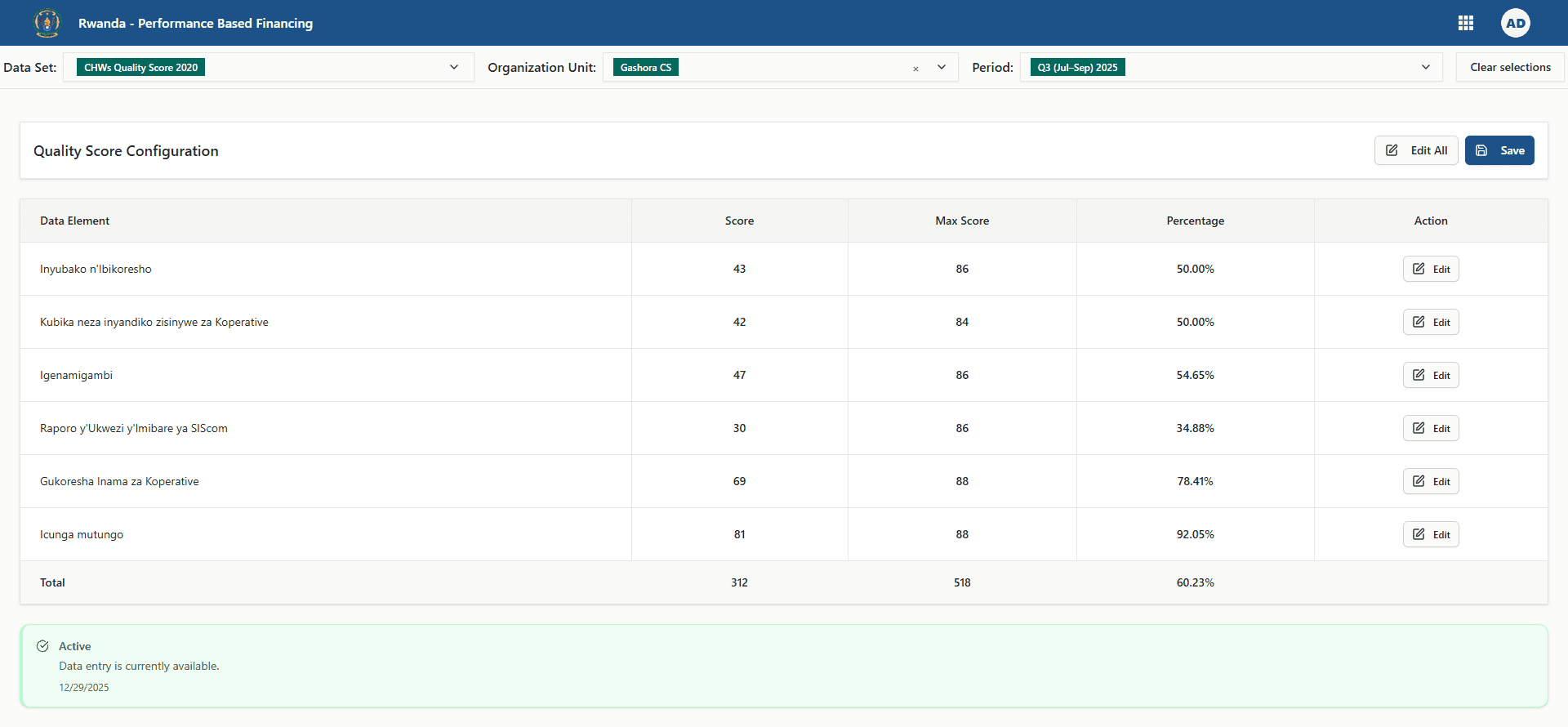
Understanding the table
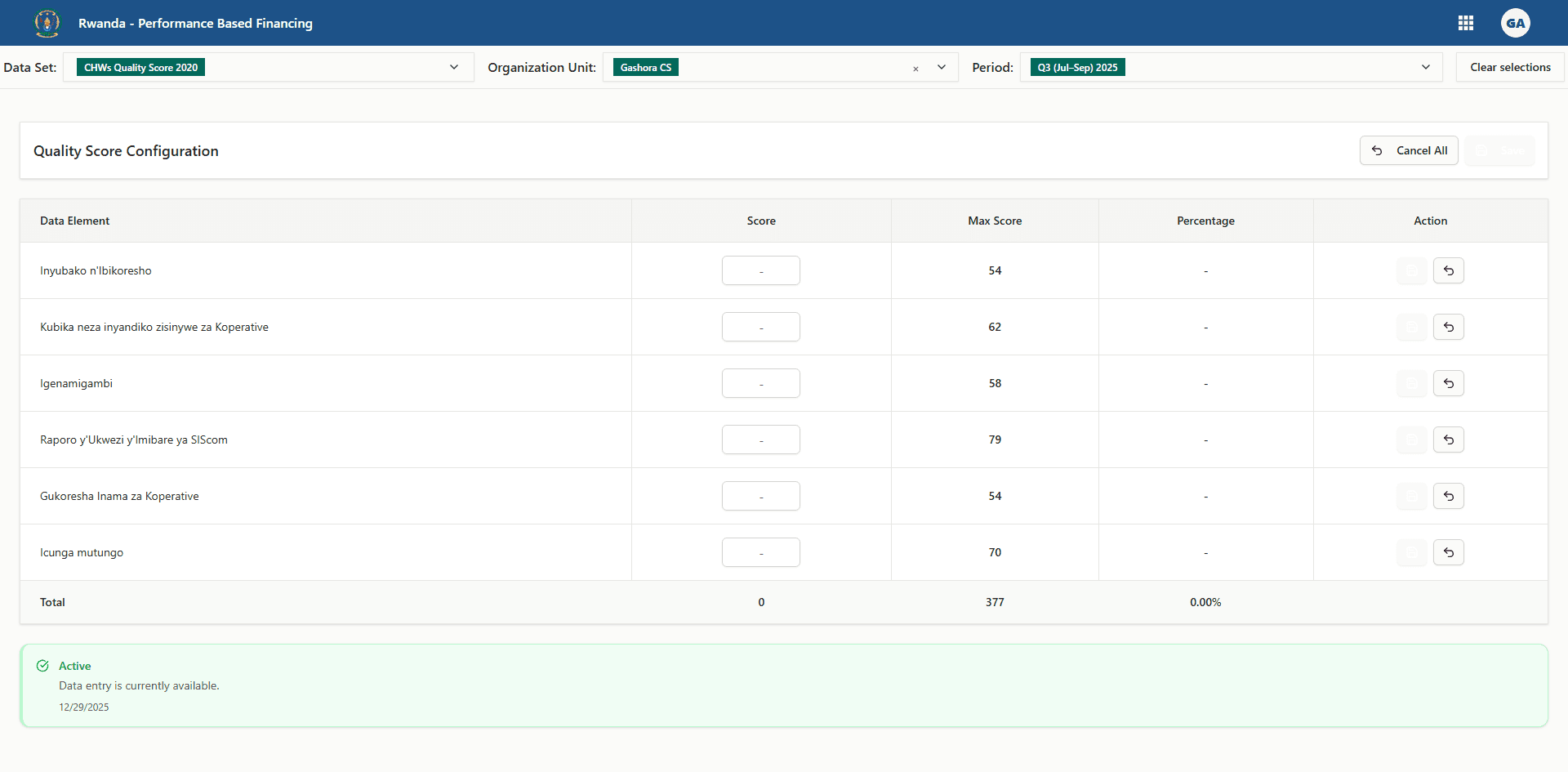
Each row represents one quality indicator from the selected dataset. The columns stay consistent so you can work through the entire form without surprises.
| Column | What you see | Can you edit it? | Required to save? | Extra detail |
|---|---|---|---|---|
| Data Element | The indicator label with a tooltip for the full description | No | — | Pulled directly from the dataset. Any validation message appears beneath the name when a save fails. |
| Score | The validated quality score for the visit | Yes | Yes | Accepts whole numbers or decimals up to the configured max score. Leaving it blank prevents the row from saving. |
| Max Score | The highest possible score for that indicator | No | — | Comes from the Quality Max Score configuration for the same dataset, facility, and period. If the configuration is missing the table stays hidden. |
| Percentage | Live calculation of Score ÷ Max Score × 100 | No | — | Updates instantly while you type. Displays a dash until both score and max score are present. |
| Action | Buttons to Set/Edit, Save, Cancel, or a lock icon | Yes | — | Determines whether you can edit the row. A lock icon indicates the period is closed. |
A totals row at the bottom adds up all scores, sums the max scores, and shows the overall percentage so you know the facility’s average before leaving the page.
Before you begin
Confirm access and configuration
- Sign in with a role that has quality score permissions for the facility. The organisation unit selector only lists units assigned to your user.
- Ensure the dataset is configured as a quality dataset. Only quality datasets appear in this workspace.
- Verify the Quality Max Score workspace already contains max scores for the dataset, facility, and period. Without them the form cannot load the grid.
Review availability status
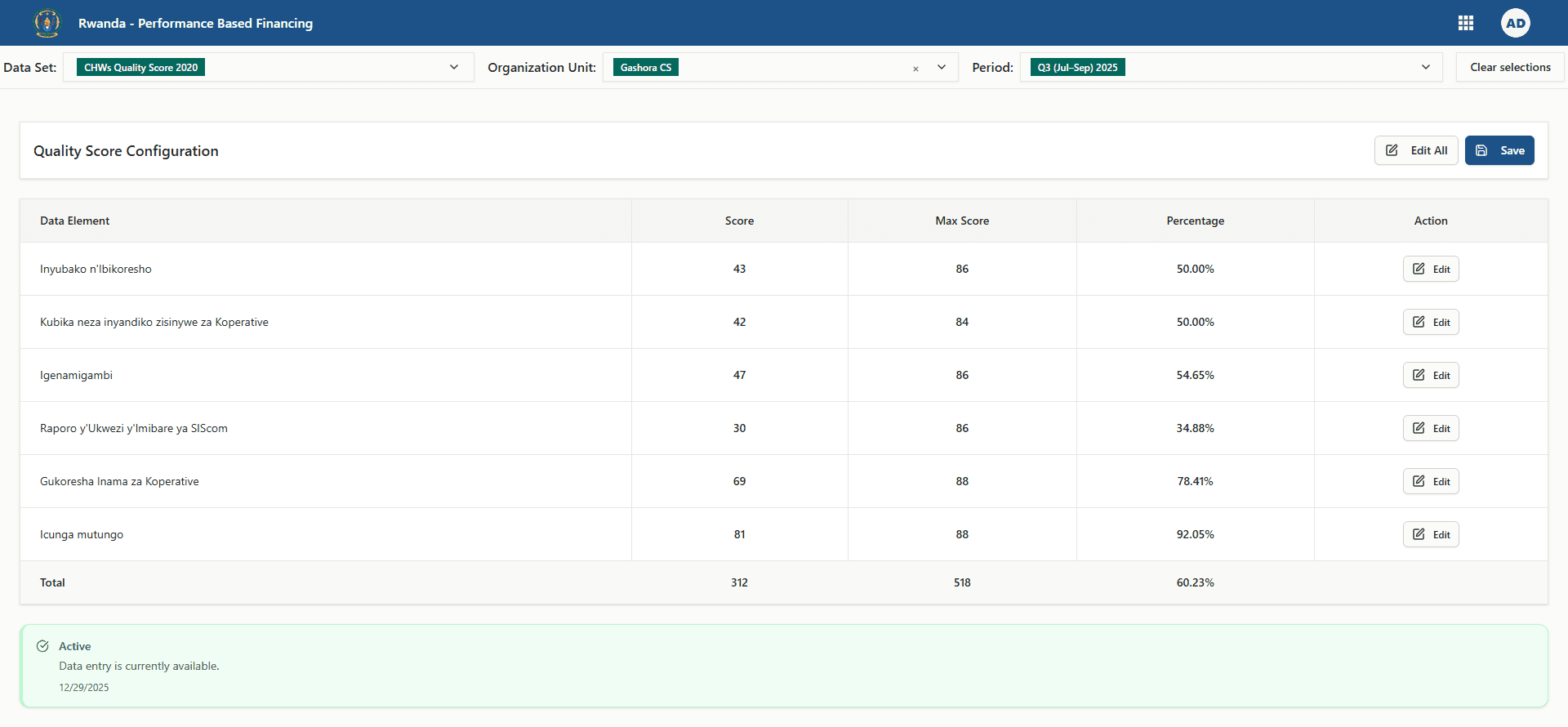
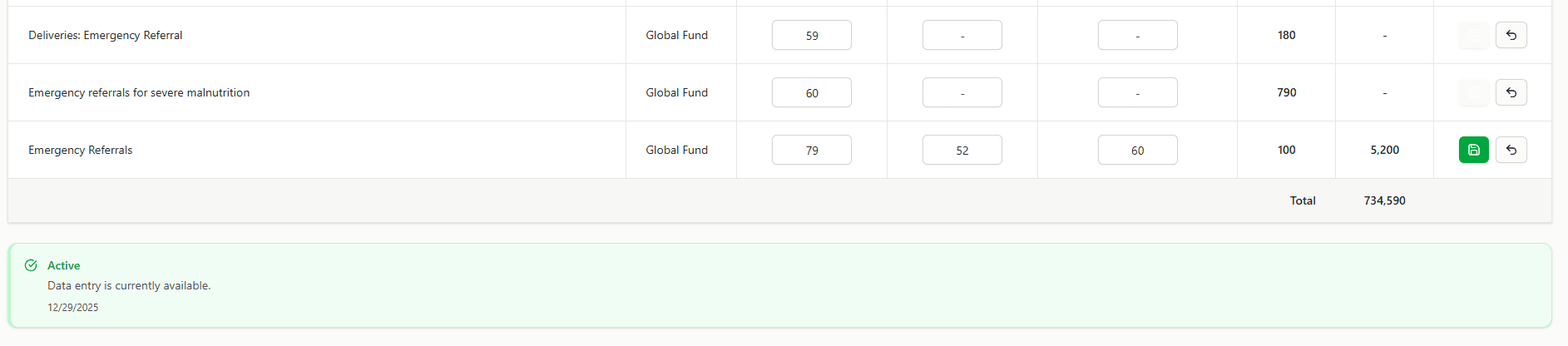
Above the grid, the availability badge shows the current period state:
- Active – Scoring is open and you can edit rows.
- Expiring Soon – The deadline is approaching; finish entries promptly.
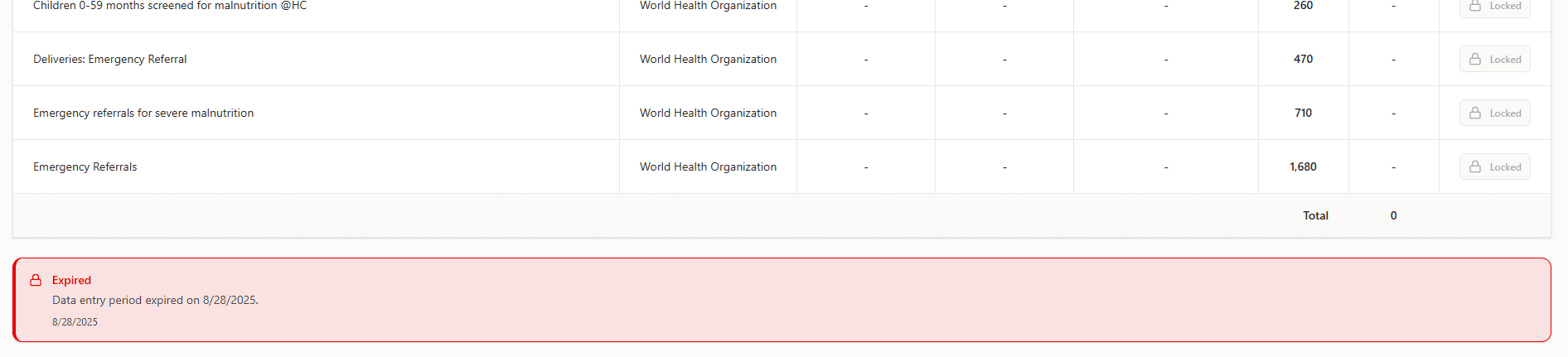
- Expired – Editing is blocked. Action buttons turn into locks.
- Lock Exception – The period expired but an administrator extended access temporarily. A warning banner explains the extension window.
How the selectors work
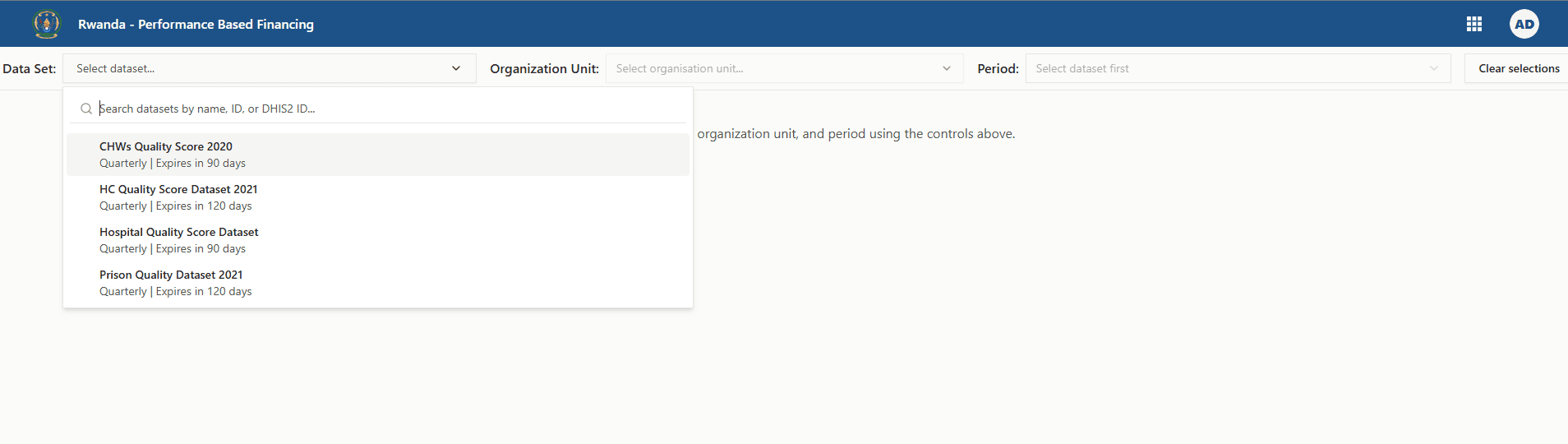
The selectors at the top of the page load data in a specific order to prevent mismatched combinations.
Dataset picker
- Lists only internal quality datasets, showing the period type and expiry rules underneath each name.
- Changing the dataset automatically clears the organisation unit and period selectors so you cannot mix metadata from two datasets.
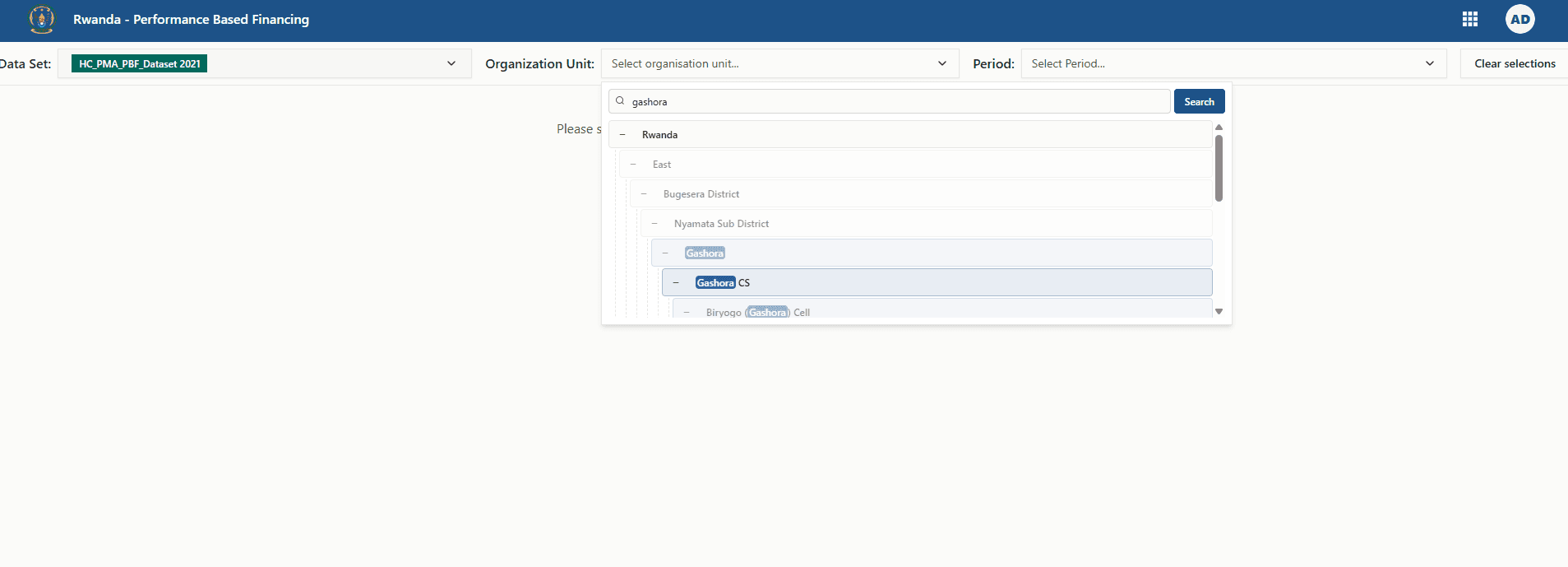
Organisation unit picker
- Unlocks only after you choose a dataset because eligibility depends on dataset assignments.
- Displays the organisation unit tree filtered to the facilities your account can access.
- Includes search so you can jump directly to the site you need without navigating the full hierarchy.
Period picker
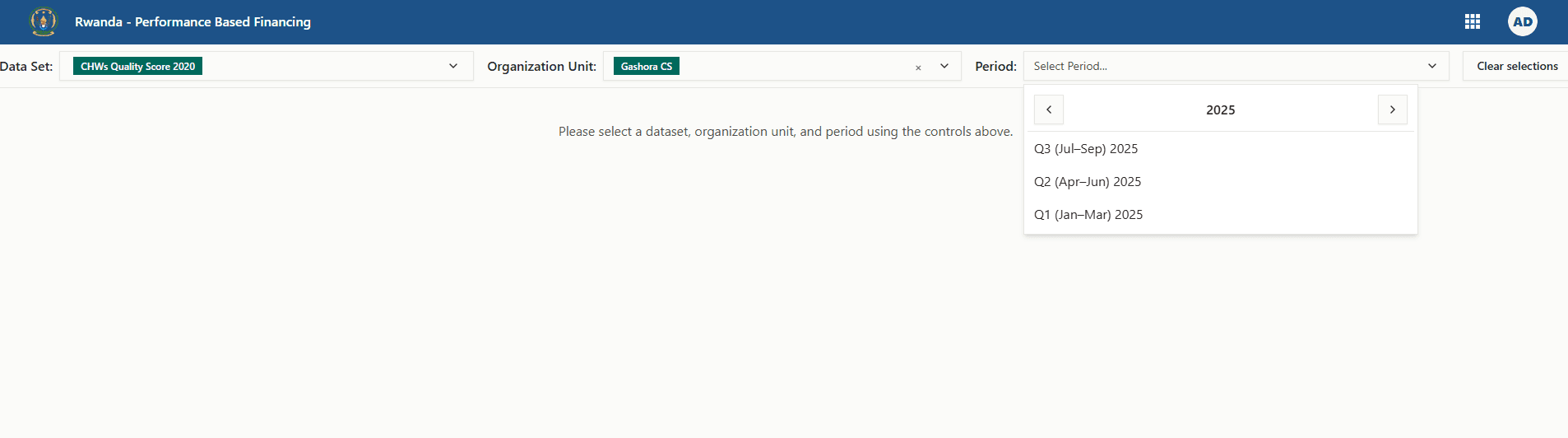
- Activates once both dataset and organisation unit are set.
- Follows the dataset’s period type and hides current or future periods so you can score only completed visits.
- Lets you move between years with arrow buttons and select the finished period you audited.
Clear selections
Use Clear Selections any time you choose the wrong combination. It resets dataset, organisation unit, and period and clears any cached data before reloading.
Load the quality score grid step by step
Navigate to Quality Score Entry from the workspace navigation. A spinner appears while the selectors initialise.
Open the dataset dropdown, search if needed, and pick the quality dataset that matches your assignment. Remember that switching datasets clears the other selectors.
Expand the organisation unit tree or use search to find the facility. Only units linked to the dataset and your user permissions are selectable.
Use the year arrows to navigate, then choose one of the completed periods. Once selected, the workspace loads the indicator grid automatically.
After all three selectors are filled, the grid appears with any previously saved scores pre-populated. Blank rows mean no scores were entered yet.
Entering and updating scores
Edit a single indicator
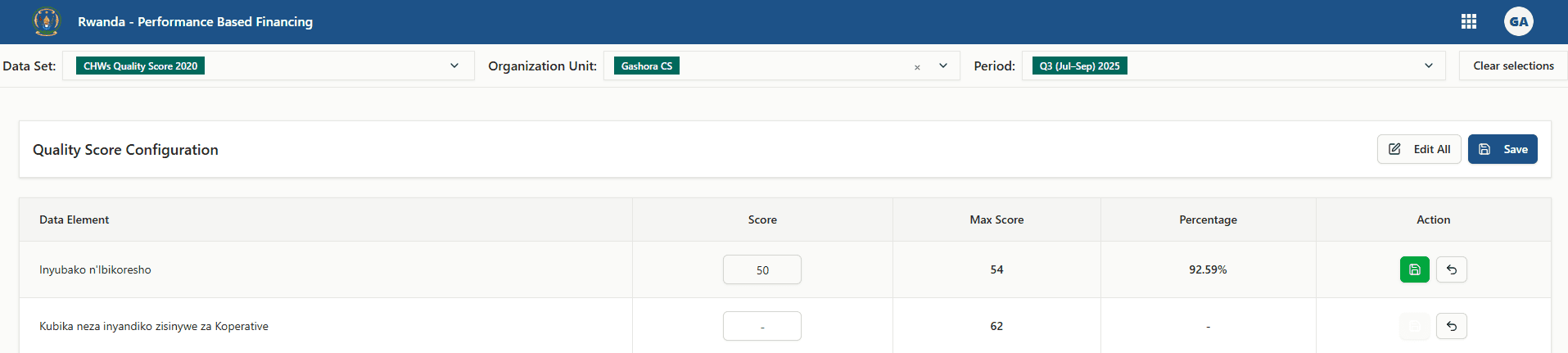
- Click Set or Edit in the Action column to unlock one row.
- Enter the validated score in the Score field. The input prevents values greater than the Max Score.
- Use the green save button to commit the row or the grey cancel button to revert to the previous value.
Edit multiple indicators together
- Select Edit All in the toolbar to unlock every row at once.
- Work down the list, entering the validated score for each indicator.
- Press the main Save button to store all edited rows or Cancel All to discard the batch of changes.
Validation and feedback
- Scores cannot exceed their corresponding max score. If you try, a red toast appears and the previous value returns.
- Rows without a score are skipped during save, so fill every indicator you need before saving.
- When the server rejects a row (for example, if another user saved different data moments earlier), the alert banner lists the issue, the affected rows highlight in red, and the inputs stay editable so you can fix them right away.
- Save frequently to avoid losing work if your connection drops.
Percentages and totals
- The Percentage column recalculates instantly as you type, helping you confirm whether the score is within expectations.
- The totals row aggregates the scores and max scores and shows the overall percentage so you know the site’s composite quality result.
Period locks
- Once a period expires, all action buttons change to lock icons and the toolbar saves are disabled.
- A lock exception banner appears when administrators extend the deadline, showing how long you can continue editing before access closes again.
Troubleshooting
-
The grid never loads
Confirm that Quality Max Scores are configured for the selected dataset, organisation unit, and period. Without them the workspace shows a configuration warning instead of the table. -
My facility is missing
Check Partner Assignments or DHIS2 sharing to ensure the organisation unit is linked to the dataset and to your user permissions. -
The save buttons are disabled
Look at the availability badge. If it shows Expired, request a lock exception from an administrator before continuing. -
Rows keep showing errors
Read the alert banner and the red helper text under each indicator, correct the values, and try saving again. Rows with issues stay in edit mode until the validation passes. -
I picked the wrong selectors
Use Clear Selections to reset the dataset, organisation unit, and period, then choose the correct combination.