 HISP Rwanda
Invoices Workspace
The Invoices workspace centralises every pre-configured template that the finance and verification teams use to generate payment-ready documents. This is where you select an existing template, preview the results with the right organisation unit and period, and then download the file in the format required by your payment workflow.
Why invoice templates matter
Invoice templates bundle the complex configuration that links tariff datasets, organisation units, grouping rules, and export columns. Each template stores:
- The dataset identifiers that determine which services, tariffs, and quality scores feed the totals.
- The period type (Monthly, Quarterly, or Yearly) so the UI can offer the correct list of reporting periods.
- Optional extra calculations and custom rows used by finance teams when reconciling incentive payments.
- A full download history that proves when a document was generated, by whom, and for which organisation unit.
By centralising this configuration, the workspace helps teams focus on selecting the correct metadata and reviewing totals instead of wrestling with spreadsheets.
Page layout at a glance
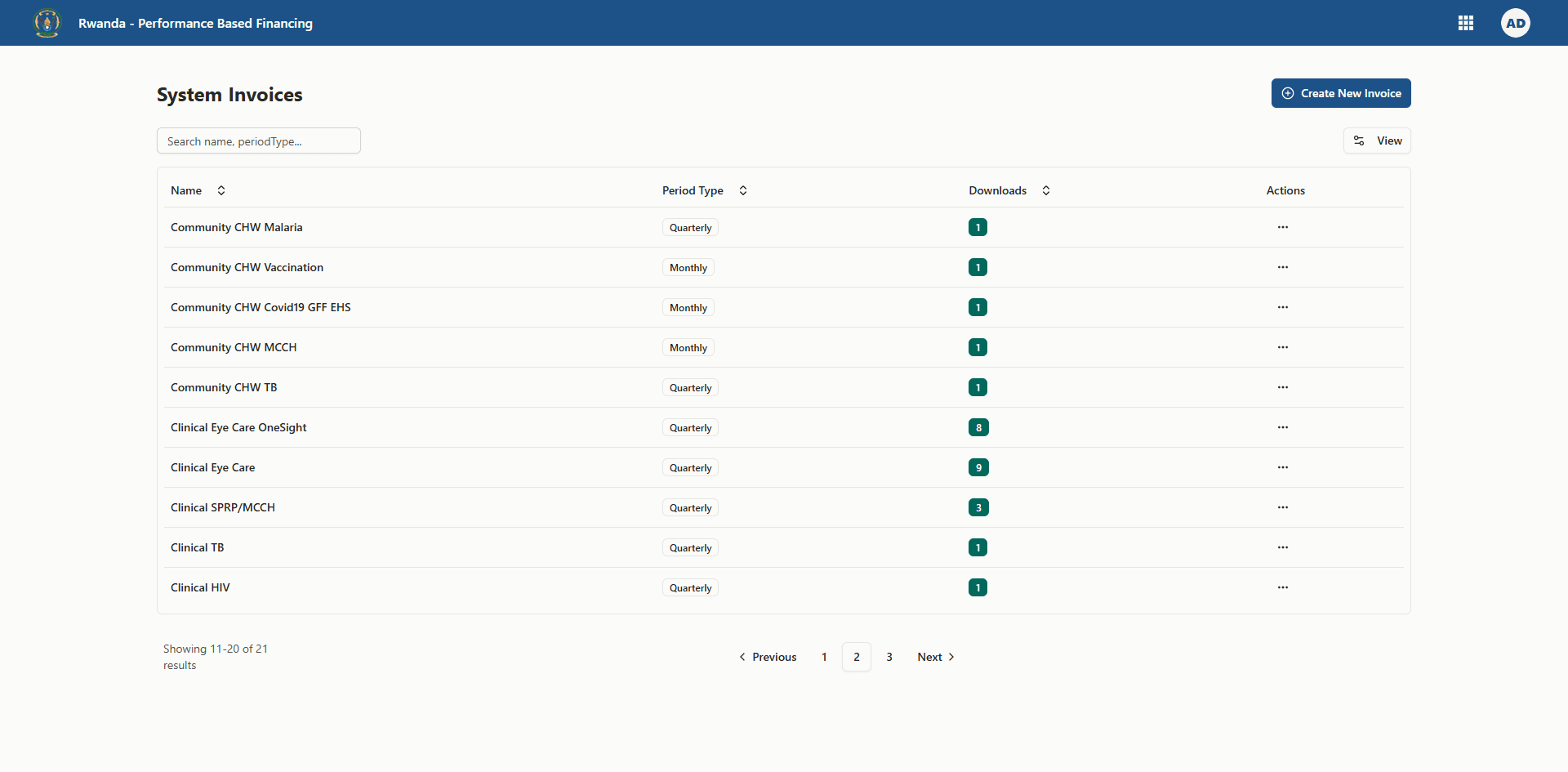
The landing page lists every invoice template your account can access. This guide focuses on previewing, downloading, and reviewing history rather than the template creation flow.
| Area | What you find | Why it matters |
|---|---|---|
| Header | Page title and (for authorised users) a button that opens the template builder. | Confirms you are in the invoice workspace, not the payment preview or tariff tools. |
| Search and filters | A search box built into the table lets you filter by template name or period type. | Quickly narrow the list when you manage many templates. |
| Template table | Name, period type, download counter, and an actions menu for each template. | Shows which templates are most used and provides entry points into preview and download dialogs. |
| Pagination footer | Navigation controls appear when more than one page of templates exists. | Keeps the list responsive even in large programmes. |
Table columns on the landing page
| Column | What it displays | Can you sort or search? | Practical usage |
|---|---|---|---|
| Template Name | The human-readable label created by administrators. Hover to view the full name if it is truncated. | Searchable | Pick the invoice that matches the programme, funding line, or incentive type you want to pay. |
| Period Type | Monthly, Quarterly, or Yearly, rendered as a badge. | Searchable | Tells you which period picker logic will appear inside the dialog. |
| Downloads | A running total of how many times the template was exported. | Not directly searchable, but you can visually scan | Helps finance leads track which templates feed the most payments. |
| Actions | A menu with options to preview, review history and download, or check completeness. | — | Opens the detailed invoice dialog. |
Access prerequisites
Before opening the detailed dialog, confirm the following:
- User role – Only users with roles that include invoice permissions will see the workspace. Data Entry-only users can view the list but cannot open the download dialog.
- Organisation unit scope – The dropdown inside the dialog shows the organisation units that are assigned to your user account. If you cannot find a facility or district, request sharing from an administrator.
- Dataset connectivity – Invoice templates reference one or more tariff datasets. If a dataset has been archived or if tariffs are missing, the preview may return empty values until the configuration is restored.
- Bank details readiness – Bank account names and numbers pull from facility bank records. Encourage facilities to keep those details up to date so the exported invoices are complete.
Working with the actions menu
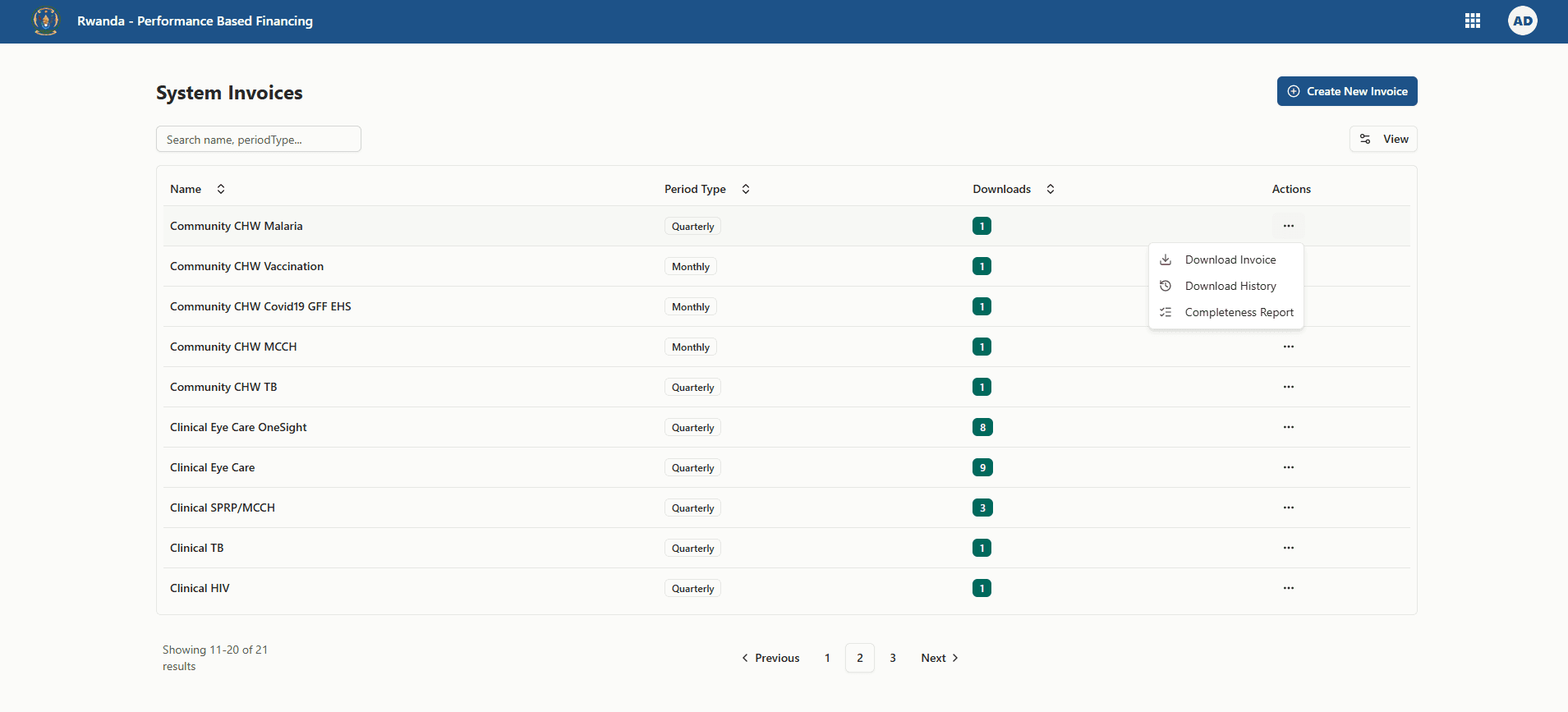
Each row in the table has an actions button with three choices:
- Preview – Opens the invoice dialog on the Details tab with the preview controls active. Use this when you want to confirm totals before downloading.
- History – Opens the same dialog but jumps directly to the History tab, showing who downloaded the file previously and for which period.
- Completeness – Navigates to the completeness checker. That tool is outside the scope of this document but is useful when verifying that every facility has submitted data.
Selecting either Preview or History loads the invoice dialog described below.
Navigating the invoice dialog
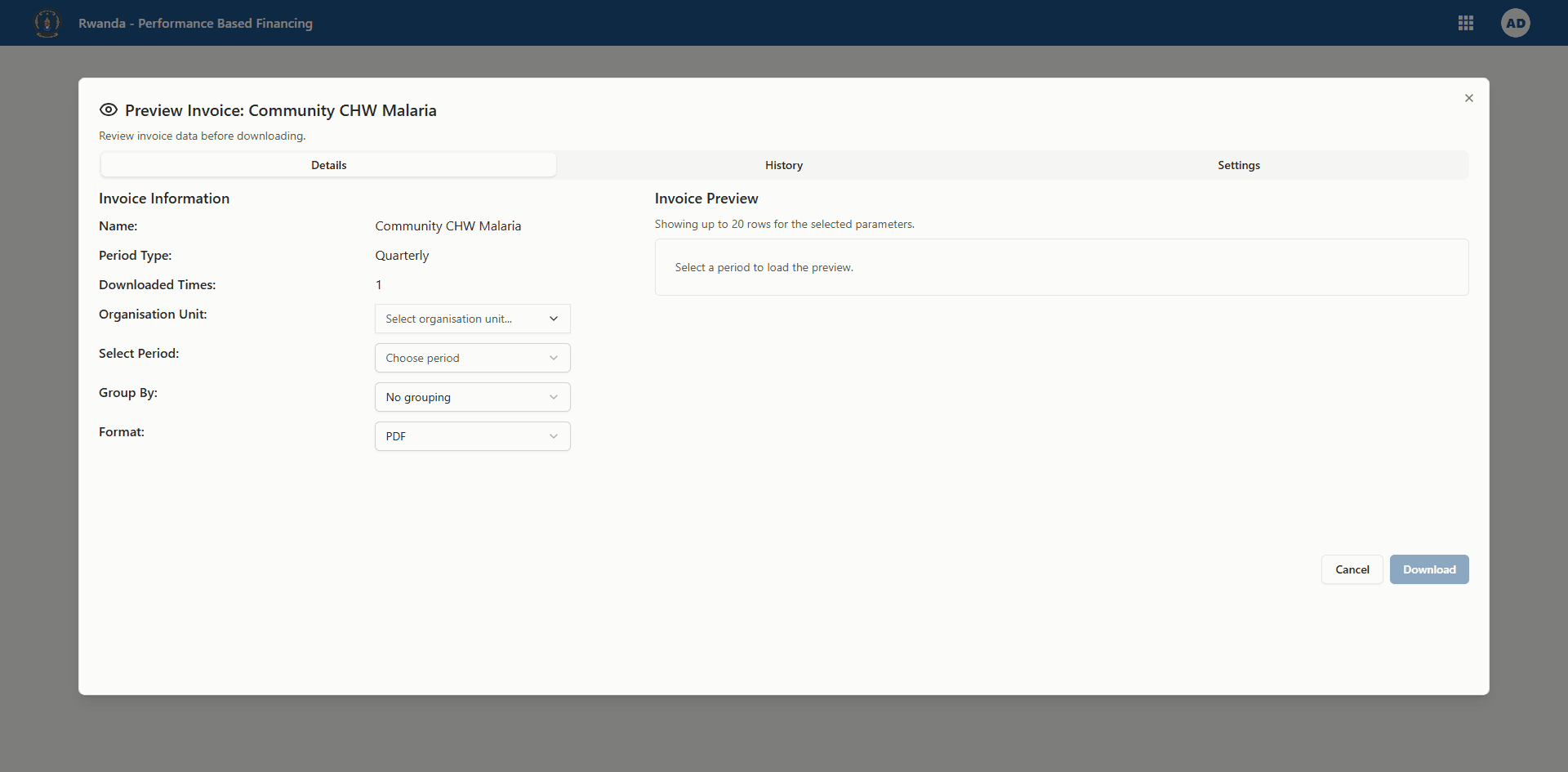
The invoice dialog is a full-height modal with tabs. It remembers which tab to open based on the action you selected. The dialog always shows three tabs:

- Details – Summary information, metadata selectors, and (for previews) a live grid of invoice rows.
- History – The chronological list of downloads, including period, organisation unit, timestamp, and user.
- Settings – The configuration snapshot that explains how the template behaves, including additional columns, custom rows, and grouping defaults.
Use the tab strip near the top of the dialog to move between sections at any time.
Details tab essentials
The Details tab is split into two zones:
- Template summary – A compact grid that repeats the template name, period type, and total download count. When preview or download mode is active, it also exposes the selectors you must complete.
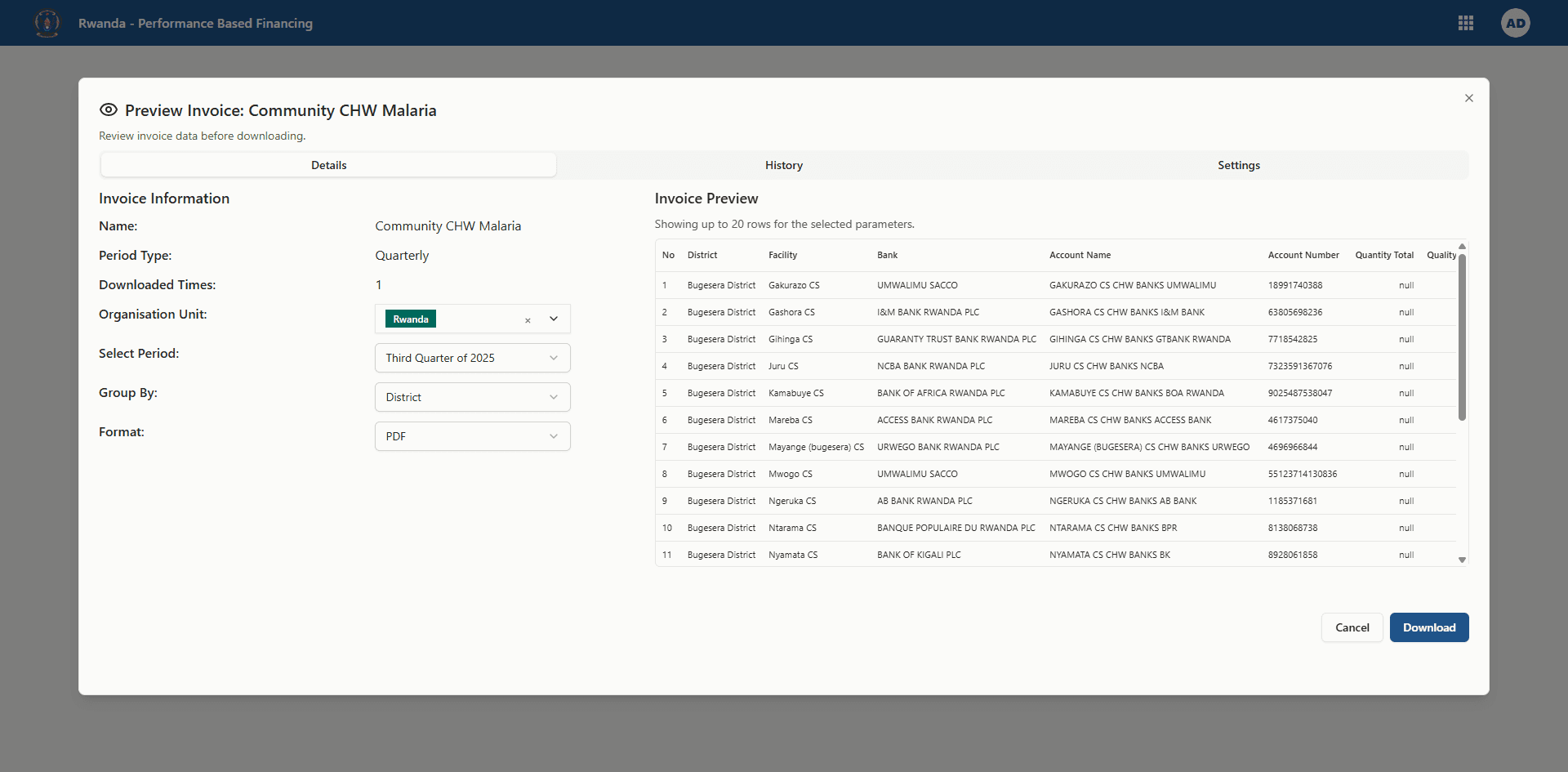
- Preview panel – When you open the dialog in preview mode, the right-hand column becomes a mini report showing up to 20 rows of invoice data. This helps you confirm grouping and totals before exporting the full file.
Selection controls on the Details tab
These controls appear when you open the dialog through the Preview or History options. They define the dataset slice used for previews and downloads.
| Control | What it does | Key behaviours |
|---|---|---|
| Organisation Unit | Choose the facility, district, or higher-level unit you want to invoice. | Uses the organisation unit tree tied to your assignments. Supports lazy loading for large hierarchies. If the template restricts selection to a specific level, the dropdown prevents incompatible choices. |
| Period | Pick the reporting period that matches the dataset period type. | The dropdown options change based on the template period type. Monthly templates show year-month values (e.g., 2024-01). Quarterly templates display labels like 2024 Q1, and yearly templates show whole years. Only completed periods are listed; current or future periods stay hidden. |
| Group by level | Optional selector that lets you aggregate invoice rows by a higher organisation unit level. | The list includes eligible organisation unit levels (level 1–6). Choosing a level adds a grouping column to the preview and exports. Selecting “No grouping” preserves facility-level rows. |
| File format | Decide between PDF, Excel, or CSV output. | PDF replicates the official invoice layout for signatures, Excel provides a workbook for further calculations, and CSV offers a lightweight export for bulk data processing. |
How period options are built
- Monthly templates – The app offers the last 12 completed months counted backwards from the current month. Labels are formatted as
YYYY MMMto aid recognition, while the API sendsYYYYMM. - Quarterly templates – The dropdown lists the last eight quarters. Each option clearly states the quarter number and year (e.g.,
2023 Q4). These periods align with the fiscal cadence configured in DHIS2; if your programme treats Q1 as July–September, the backend supplies that mapping. - Yearly templates – The control shows the last five complete financial years. If the fiscal year spans multiple calendar years, the label includes the fiscal reference such as
FY 2022/2023.
When you change the period type at the template level, the dialog automatically refreshes the options so you never mix fiscal and calendar periods.
Organisation unit behaviour
- The dropdown includes only units that belong to your assignment tree and are enabled for invoices.
- Searching works across full names, so typing a district or facility name quickly narrows the list.
- When grouping by level, you may still pick a lower-level facility as the base selection; grouping then aggregates rows under the higher-level headings in the preview and export.
Grouping logic
Grouping is optional but powerful. It influences both the preview and the downloaded file:
- Selecting a level such as District (Level 3) groups facility rows under their district headings and shows group subtotals.
- If a facility lacks a parent at the chosen level, the preview marks the grouping column with a fallback label so you can spot configuration gaps.
- Changing the grouping level automatically refreshes the preview data when a period is selected.
File formats explained
| Format | When to use it | What the export includes |
|---|---|---|
| Official submissions, signatures, or when sharing with stakeholders who prefer a locked layout. | Branded header, grouped facility table, and totals in a printable layout. Additional columns appear in the body and custom rows render at the bottom. | |
| Excel (.xlsx) | When finance needs to filter, pivot, or perform further adjustments. | Multiple sheets: a summary tab, detailed facility rows, grouping metadata, and any calculated columns as separate fields. |
| CSV | Integrations with accounting tools or BI pipelines that accept flat files. | Plain-text rows with comma-separated values. Grouping adds a group_name column, and additional columns expand as extra fields. |
Preview grid structure
When you select both an organisation unit and a period, the preview grid fetches up to 20 representative rows. This lightweight preview keeps the dialog responsive while still reflecting the real export.
| Column | Description | Where the value comes from |
|---|---|---|
| No. | Sequential row number within the preview. | Generated client-side for readability. |
| Group (optional) | The name of the chosen grouping level. | Derived from the organisation unit hierarchy. Hidden when no grouping is applied. |
| Facility | Facility name tied to the data element totals. | Pulled from the organisation unit metadata. |
| Bank | Bank name configured in the facility bank details. | Pulls the first available bank record for the facility. |
| Account Name | The account holder’s name used for payments. | Same bank record source as the Bank column. |
| Account Number | The account number to fund. | Same bank record source. |
| Quantity Total | Sum of validated service quantities included in the invoice. | Calculated from tariff datasets associated with the template. |
| Quality Percentage | Most recent quality score for the facility during the selected period. | Based on quality assessment data. |
| PBF Total | Monetary total after applying quantity, quality, and tariff rules. | Computed on the server when generating the preview. |
Handling calculated columns and custom rows
Some templates include extra computed fields (for example, deductions or bonuses) or summary rows (such as overall programme totals). The preview indicates the presence of these extras even when they are not shown in the 20-row sample:
- Calculated columns are listed under the selector section so you know which formulas will appear in the export.
- Custom rows are summarised in the Settings tab, and the export appends them at the bottom of the table with the configured formulas.
Downloading invoices
Once you have selected the organisation unit, period, grouping, and format, click Download in the dialog footer. The system follows these rules:
- Validation checks – The download button stays disabled until you choose at least a period. If the template requires an organisation unit but none is selected, the button remains inactive.
- Grouping parameter – When grouping is enabled, the request includes the chosen level so the exported file shows grouped totals.
- Export pipeline – The backend returns structured invoice data. The UI then formats it into PDF, Excel, or CSV locally before triggering the browser download.
- History update – Each successful download records the period, organisation unit, timestamp, and user. The History tab refreshes immediately, so you can confirm the action was logged.
During the export process a spinner appears next to the button label. You can close the dialog after the file downloads; there is no need to remain on the page.
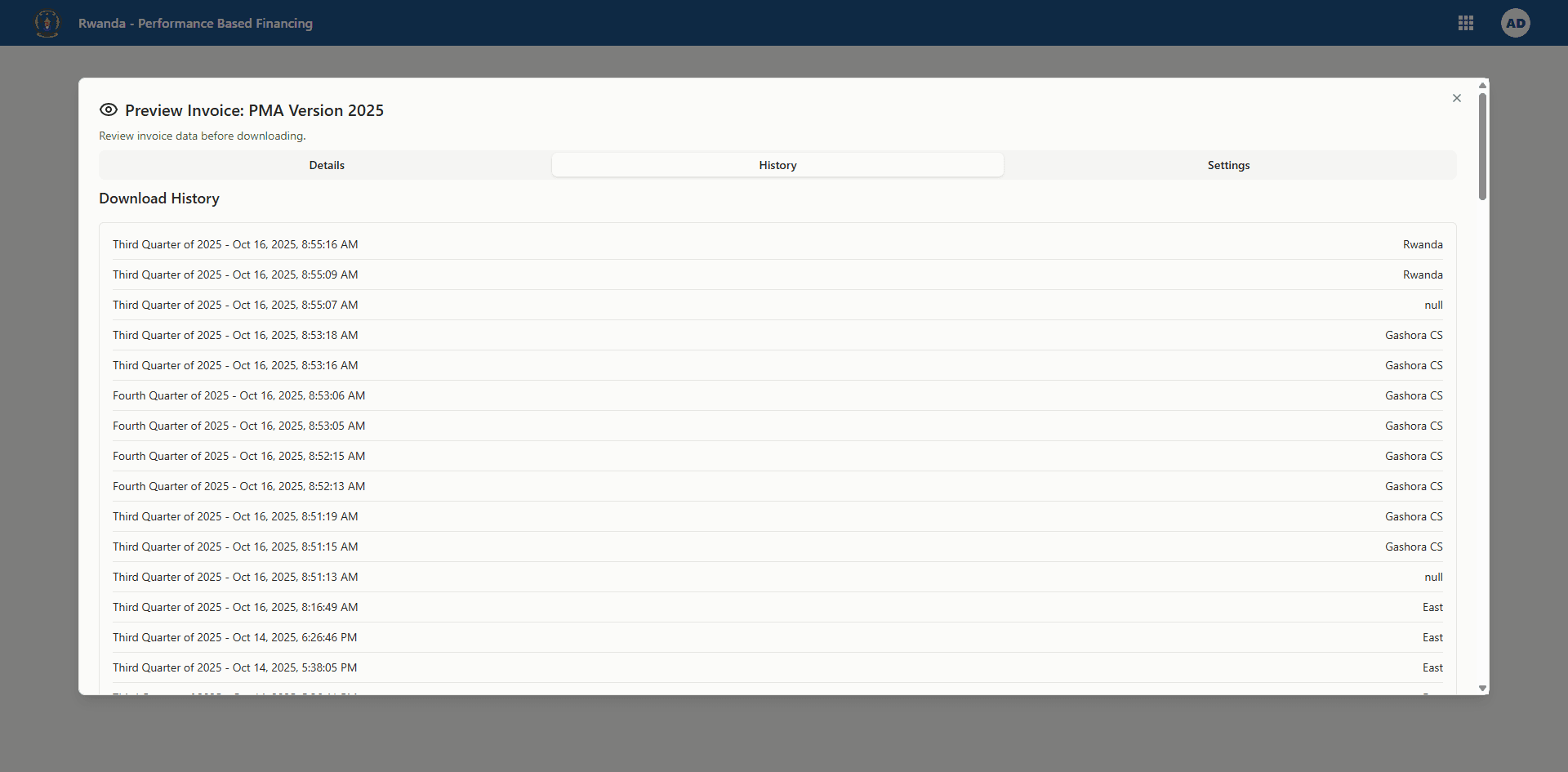
Download history tab
The History tab is your audit trail. It lists the most recent downloads first and keeps a full record of past exports.
| Field | Meaning | Notes |
|---|---|---|
| Period | The reporting period that was exported. | Uses the same formatting as the period selector. |
| Downloaded At | Timestamp when the export finished, shown in your local timezone. | Helps finance teams match downloads to payment batches. |
| Organisation Unit | The unit selected at download time. | Displays the name when available; falls back to the ID if the name was not captured. |
| Format | File type used for the export (PDF, Excel, or CSV). | Useful when confirming which layout was shared. |
| User | The person who triggered the download. | Appears when the backend captures user identifiers. |
Additional behaviours:
- The list shows up to five entries on the main screen. When more exist, a hint reminds you that only the latest records are visible in the dialog and that the full history is available via the API.
- Each new download appears instantly without closing and reopening the dialog.
- If a download fails before completion, it does not create a history record.
Settings tab deep dive
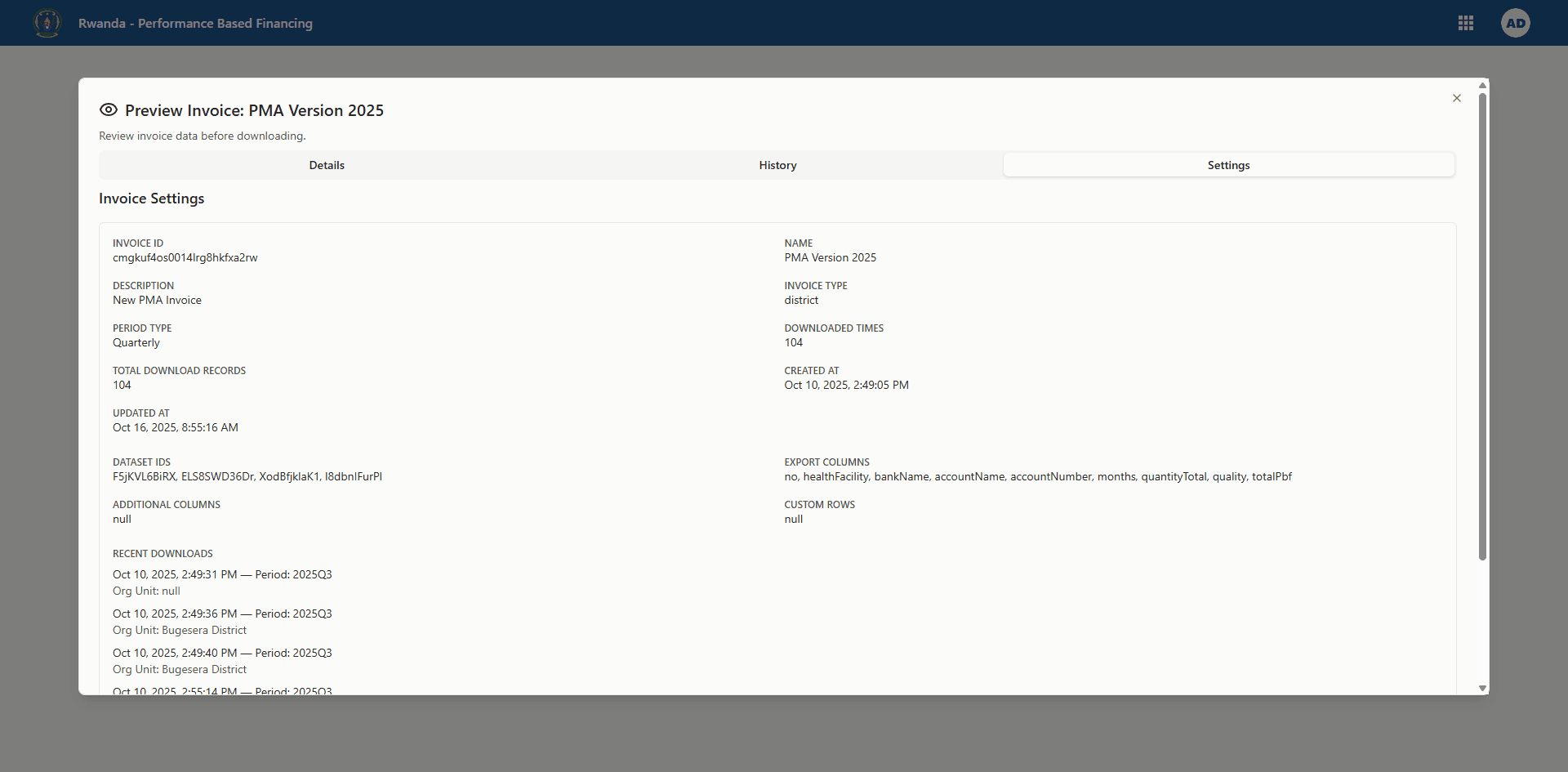
The Settings tab provides transparency into how the template was configured. This is critical when auditors or new team members inherit the workflow.
Key sections include:
- Datasets referenced – Lists the dataset IDs used for quantities, tariffs, and quality scores. If multiple datasets are bundled, each appears on a separate line.
- Period type and expiry rules – Shows the period type and whether the template restricts selection to closed periods only (the default). If a special expiry window applies, it is documented here.
- Organisation unit restrictions – Notes if the template allows only a specific level (for example, district-only invoices). The dialog enforces this restriction when you pick organisation units.
- Additional columns – Displays the names of calculated columns included in the export, such as “Retention Deduction” or “Bonus Amount.”
- Custom rows – Lists special footer rows, e.g., “Total Payable” or “Advance to Deduct,” along with hints about the formulas applied.
- Recent downloads summary – A condensed view of the history so you can confirm usage without switching tabs.
Step-by-step workflow
Use the actions menu on your chosen template and click Preview. The dialog opens on the Details tab with metadata selectors ready.
Pick the facility or district first, then choose the period that matches your payment cycle. Remember that only completed periods appear.
Decide whether you need grouped totals and select the export format that suits your downstream process.
Scroll through the sample rows to confirm bank details, grouping labels, and totals look correct. If anything is missing, update the underlying configuration before exporting.
Click Download. Wait for the spinner to finish, then verify that the file opens correctly on your computer.
Switch to the History tab to ensure your download was logged. This is especially helpful when reconciling with finance colleagues.
Review the Settings tab and capture any notes about additional columns or custom rows in your payment tracker so everyone understands the invoice structure.
Best practices for finance teams
- Align periods with payment cycles – If your programme pays quarterly but quality assessments arrive biannually, confirm the template uses the correct period type to avoid misaligned totals.
- Verify bank data monthly – Before large disbursements, filter the preview grid to confirm every facility has valid bank details. Missing data should be corrected in the bank details workspace before exporting.
- Use grouping for district reviews – When district health officers need oversight, export grouped PDFs so each district receives a consolidated appendix.
- Track download counts – The Downloads column and the History tab together help you monitor who generated which invoice. If a template shows unexpected activity, follow up with the listed users.
- Capture exceptions in Settings – If you temporarily add a deduction or bonus column, note it in your internal change log so auditors understand why the export changed.
We cannot display actual exported invoices as they contain confidential information.
Troubleshooting
- No organisation units appear – Ensure you are assigned to the relevant units in the user management module. If the template restricts selection to a specific level, confirm your units include that level.
- Period dropdown is empty – The template may have a yearly period type while the dataset lacks recent yearly data. Check that the dataset includes completed periods or adjust the template.
- Preview shows missing bank details – Update the facility’s bank record in the Bank Details workspace. The preview uses the first available record; if none exists, the export will contain blanks.
- Download button stays disabled – Verify that you selected a period. For some templates, an organisation unit selection is also required before downloading.
- History tab is blank – The template might be new, or no one has downloaded it since the last reset. Trigger a download to confirm the logging is active.
- Exports take too long – Large grouped exports can take several seconds. Wait for the spinner to finish. If the browser reports a network error, try again with a smaller grouping or check your connection.
- Totals look incorrect – Confirm the template references the correct datasets and that the underlying tariffs and quality scores were updated for the selected period.