 HISP Rwanda
Login
Authentication Login
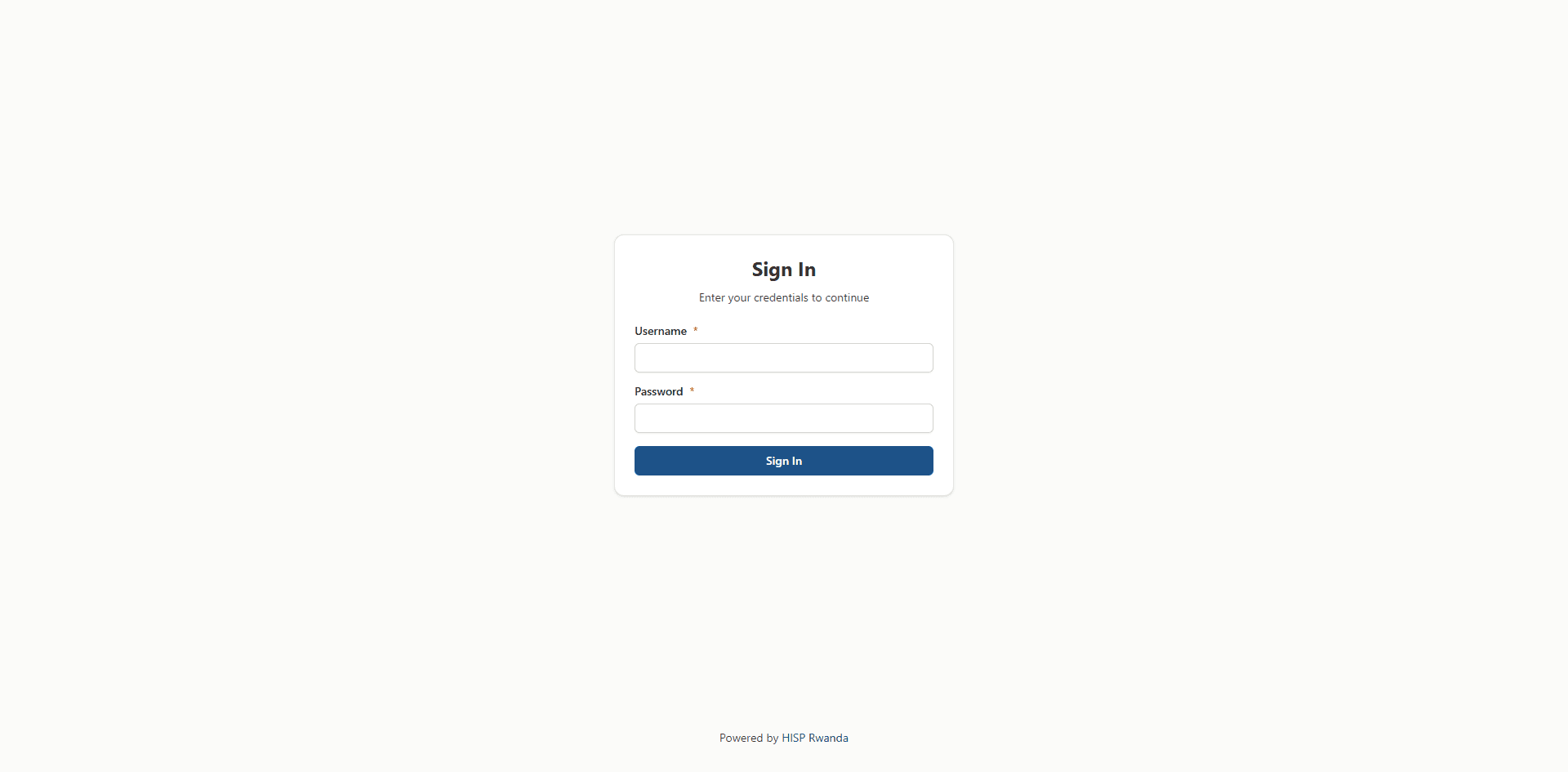
Use the login screen to sign in with your existing DHIS2 account. Access to every workspace depends on your username’s assignments in DHIS2, so always start a session with the credentials provided by your programme manager.
What you need before logging in
- A valid DHIS2 username and password created by your national or programme administrator.
- Facility assignments in DHIS2 that match the organisation units you expect to manage after signing in.
- A supported browser (Chrome, Edge, or Firefox) with cookies enabled so the session can persist while you work.
- Stable internet connectivity. Losing the connection midway may sign you out and discard unsaved edits in other workspaces.
Sign-in steps
Navigate to the application URL provided by your national team. The login form appears automatically if you are not signed in.
Type your DHIS2 username exactly as it was issued. Usernames are case-sensitive in DHIS2, so match the original spelling.
Enter the password linked to that username. If you recently changed it in DHIS2, use the updated value here.
Click Sign in (or press Enter). The system verifies your credentials directly against the DHIS2 server that hosts your account.
Successful authentication redirects you to the workspace landing page that matches your role. If the browser remains on the login screen, review the error message near the form.
Understanding error messages
- "Invalid username or password" means DHIS2 rejected the credentials. Confirm that Caps Lock is off and retype both fields before trying again.
- Account locked errors appear after several failed attempts. Wait the required cooldown time or contact your site administrator to reset the lock.
- Network or server errors indicate the DHIS2 backend could not be reached. Check your internet connection and try again after a few minutes.
- Organisation unit access issues after login suggest your DHIS2 user is missing facility assignments. You may log in successfully but see empty dropdowns in workspaces.
When you cannot sign in
If you still cannot log in after rechecking your username and password:
- Collect the details your administrator will need:
- Your full name.
- Your DHIS2 username.
- The facility or organisation unit you are assigned to.
- A screenshot of the error message if possible.
- Contact your site administrator or help desk using the official support channel for your programme.
- Do not share passwords over email or messaging apps. Administrators can reset your DHIS2 password without knowing the old one.
The administrator will verify your assignments in DHIS2, confirm the facility linkage, and either correct the configuration or issue a temporary password for you to reset.
Staying signed in securely
- Always sign out when using a shared computer to prevent other users from accessing your workspaces.
- Avoid saving passwords in public browsers. If you must store them, use an approved password manager.
- Refresh the page or sign in again if you are redirected to the login form after a long idle period; sessions expire automatically for security.
Troubleshooting
- Forgotten password – Contact the site administrator and request a reset. Provide your username and facility so they can confirm your identity quickly.
- Two users sharing one account – Each staff member should have their own DHIS2 login to maintain clear audit trails. Request additional accounts if necessary.
- Browser autofill issues – Clear saved credentials in your browser settings if the wrong username keeps appearing.
- Time mismatch errors – If the login screen warns about time differences, check your computer’s date and time settings and correct them before retrying.